
How to Turn Your Shopify Store Into a Mobile App (2026 Guide)
A step-by-step guide to turning a Shopify store into a native iOS and Android app without code, from choosing a builder to designing, testing and publishing on the App Store and Google Play.
A mobile app puts your store on your customers' home screens, lets you reach them with push notifications, and gives your best shoppers a faster way to buy again. A few years ago that meant hiring an agency and paying tens of thousands of dollars. Today you can build a native iOS and Android app from your Shopify admin in an afternoon and have it live in the stores within a couple of weeks.
This guide walks through the whole process in order: what you need before you start, how to design the app, how to test it on your own phone, and how publishing works.
What you need before you start
- A Shopify store with products and collections. Your app reads them straight from Shopify, so there's nothing to import.
- Your logo and brand colors. A square logo of at least 1024×1024 px works for the app icon.
- A Google Play developer account ($25 once) and an Apple Developer Program membership ($99 a year). You only need these when you publish, not while you design.
- A D-U-N-S number for your business. Both Apple and Google ask for one when you register as an organization. It's free from Dun & Bradstreet but can take a week or two, so request it early.
- A privacy policy and terms page. Both stores require them. Your Shopify store's policies usually work.
Step 1: Choose an app builder
For most Shopify merchants, a Shopify app builder is the right choice over custom development. Builders connect to your catalog, cart, checkout and customer accounts out of the box, and they keep the app updated as Apple, Google and Shopify change their requirements.
When you compare builders, look at five things:
- Native or webview. A native app draws its own screens. A webview app shows your mobile website inside an app shell. Native apps are faster and feel like apps; webview apps match your site exactly. We explain the difference in native vs webview Shopify apps.
- Price and how it scales. Some builders charge a flat monthly fee. Others add a percentage of app revenue or charge by monthly active users, which gets expensive as you grow. See how much a Shopify app costs.
- Checkout. Checkout should run on Shopify, so your payment methods, discounts, shipping and taxes behave exactly as they do on your website.
- Who publishes the app. Some builders leave app store submission to you. Others submit for you under your own developer accounts.
- Can you change the design after launch without sending a new version through app review?
We compare the popular options side by side in the best Shopify mobile app builders.
Step 2: Design your home screen
Your home screen does the most selling, so spend most of your design time here. In Casa Mobile App Builder, you build it from blocks you stack in any order:
- Search bar at the top, because app shoppers search more than website shoppers.
- Banner or banner slider for your current campaign, linked to a collection or product.
- Product carousels for best sellers and new arrivals.
- Collections as a grid, carousel or slider so shoppers can jump straight into a category.
- Countdown timer for sales and drops.
- Shoppable videos: short vertical videos with tagged products, shown as story circles or a carousel.
- Testimonials, featured brands and headings to break the page into sections.
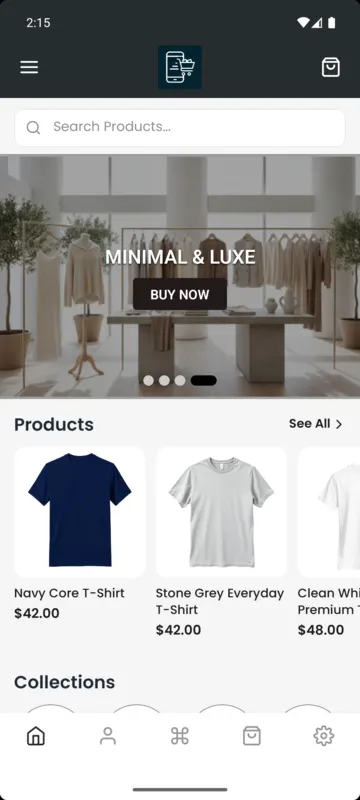
A good rule: put one clear campaign at the top, then two or three ways into the catalog (best sellers, categories, new arrivals), and keep the page short enough to scroll in a few seconds. You can change it any time after launch.
Step 3: Set your brand, menus and app icon
Next, make it look like your brand:
- Header logo: your logo image or your store name in text.
- Colors: header, background, buttons and text.
- Navigation: a bottom tab bar (Home, Shop, Cart, Account) plus a side menu for collections, pages and policies. Casa offers four bottom bar styles: classic, labeled, floating and indicator.
- App icon and splash screen: what customers see on their home screen and while the app opens.
- App texts: every button and label, translated into the languages your customers speak.
Step 4: Preview the app on your phone
A browser preview is useful while you design, but test the real thing on a phone before you publish. Casa lets you load your store in its demo app on an Android phone with a six-character access code, so you can tap through browsing, the product page, cart, sign-in and checkout exactly as a customer would.
Check these before launch:
- Every banner and button goes where it should.
- Products without images look tidy.
- Checkout accepts a discount code and shows your shipping rates.
- Customers can sign in with their store account.
Step 5: Publish to the App Store and Google Play
Publishing is the step merchants worry about most, and it's simpler than it looks:
- Register your Google Play and Apple developer accounts as an organization, so your business name appears as the developer.
- Fill in your store listings: app name, descriptions, keywords, category, screenshots, support and privacy URLs.
- Invite your app builder's team to the accounts, or upload the build yourself if your builder expects that.
- Wait for review. Google Play usually takes 2 to 4 business days; Apple usually takes a few days to a week.
With Casa, our team submits the app for you within 48 hours of accepting your invites, and the Store listings page shows what's still needed. We cover every field and common rejection reason in how to publish your Shopify app.
Step 6: Launch and promote your app
An app nobody installs doesn't sell anything. The stores with the most app revenue promote the app everywhere customers already see them:
- A banner or pop-up on your website for mobile visitors, ideally with a small app-only offer.
- An email to your list announcing the app.
- A line on order confirmation emails and packing slips.
- Posts and stories on social media, with the download link in your bio.
- App-exclusive drops or early access, so loyal customers have a reason to install.
Once customers have the app, push notifications are how you bring them back: new arrivals, restocks, order updates and abandoned-cart reminders.
FAQ
How long does it take to turn a Shopify store into an app?
Designing takes a few hours. Developer account approval takes a few days to a couple of weeks, and app review takes a few more days. Most stores go from install to live in two to three weeks, and the wait is mostly Apple and Google.
Do I need to know how to code?
No. With a builder like Casa, you design with blocks and settings in your Shopify admin.
Will my products stay in sync?
Yes. The app reads products, collections, prices and stock from Shopify, so changes in your admin appear in the app.
Do I have to resubmit the app when I change the design?
Not with Casa. Blocks, colors, menus and texts load when the app opens, so changes reach customers without a new release.